
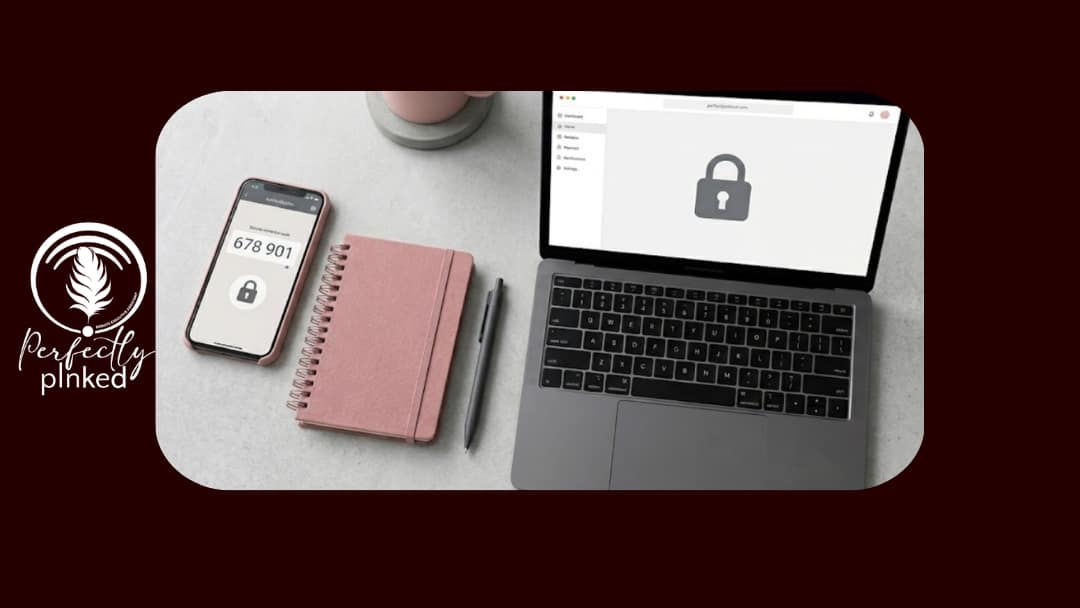
Most business breaches do not start with a sophisticated hacker. They start with a reused password. If the same login protects your email, your bank, and your client tools, one leak can unlock everything. Password security is the simplest, cheapest protection you have, and it is also the most ignored. The fix is not memorizing dozens of complicated codes. With a password manager and two-factor authentication, you can make your accounts dramatically harder to break into while actually logging in faster. Here is how to lock things down in a single afternoon.
Why Weak Passwords Are the #1 Way Businesses Get Breached
The password problem in small business isn’t a lack of awareness. Most business owners know they should have stronger passwords. The problem is behavior — the deeply ingrained habits that prioritize convenience over security until the moment convenience becomes catastrophic.
Reused passwords are the most dangerous habit. When you use the same password across multiple accounts, every breach of any platform you’ve ever signed up for becomes a potential breach of every account you hold. Credential stuffing — the practice of taking leaked username and password combinations from one breach and trying them across thousands of other platforms — is one of the most common and most effective attack methods in use today. It requires no hacking skill. Just a list of leaked credentials and an automated tool. If your email password is the same as your LinkedIn password, and LinkedIn’s data was part of any of the dozens of major breaches in the past decade, your email is already at risk.
Weak passwords compound the problem. Passwords that are short, predictable, or based on personal information — names, birthdays, company names, common words — can be cracked in minutes with tools that are freely available online. “Summer2024!” is not a strong password. Neither is “Perfectly pInked1” or any variation of your business name followed by a number and an exclamation point.
The uncomfortable reality is that password security failures aren’t usually the result of sophisticated attacks. They’re the result of ordinary habits that attackers have learned to exploit with extraordinary efficiency.
The Password Manager That Does the Remembering for You
The most common objection to strong, unique passwords is the obvious one: no one can remember dozens of long, complex, randomly generated strings. This objection was valid before password managers existed. It is no longer a reasonable barrier.
A password manager is a secure application that generates, stores, and autofills unique passwords for every account you use. You remember one strong master password — ideally a passphrase, a series of random words strung together that only you would know — and the password manager handles everything else. Every account gets its own unique, complex password. You never type them manually. You never need to remember them. The password manager fills them in automatically when you log in.
For small businesses, the most practical options are 1Password, Bitwarden, and Dashlane. All three offer browser extensions and mobile apps so the experience is seamless across devices. 1Password and Dashlane are paid products with clean interfaces and strong business features. Bitwarden is open source and offers a robust free tier that covers most small business needs. Any of the three is a significant upgrade over a spreadsheet, a notes app, or a browser’s built-in password storage.
The business case for a password manager goes beyond security. It also eliminates the time cost of password resets — one of the most quietly expensive administrative habits in a small business. According to multiple industry studies, password resets and access issues account for a significant portion of productivity loss across organizations of every size. A password manager pays for itself quickly.
One important setup note: when you create your master password, choose something genuinely strong and write it down in a secure physical location. A password manager that you’re locked out of is worse than no password manager at all.
Two-Factor Authentication in Plain English
Two-factor authentication — often abbreviated as 2FA or MFA (multi-factor authentication) — is the practice of requiring a second form of verification when logging into an account, in addition to your password. Even if someone has your password, they can’t access your account without also having your second factor.
The most common second factors are: a code sent to your phone via text message, a code generated by an authenticator app, a physical security key, or a biometric confirmation like a fingerprint or face scan. Authenticator apps — Google Authenticator, Authy, and Microsoft Authenticator are the most widely used — are significantly more secure than SMS text codes, which can be intercepted through a technique called SIM swapping. If you’re setting up 2FA for the first time, start with an authenticator app rather than relying on text messages.
Every critical account in your business should have 2FA enabled. Email is the most important — your email account is the master key to every other account, because most account recovery flows send a reset link to email. Cloud storage, banking and payment platforms, project management tools, social media accounts with administrative access, and any platform that holds client data or financial information all qualify as critical.
The process of enabling 2FA takes two to five minutes per account. The protection it provides is substantial — the vast majority of account takeover attempts are stopped by 2FA even when the attacker has the correct password.
One critical step that most people skip: save your backup codes. Every platform that offers 2FA also provides a set of one-time backup codes for account recovery. Print them or store them in your password manager’s secure notes. If you lose your phone or change devices without updating your 2FA setup, these codes are your only way back in.
Sharing Access Without Sharing Passwords
One of the most common password security failures in small businesses isn’t a breach — it’s a well-intentioned sharing practice that creates unnecessary risk. Sending passwords via email, text, Slack, or any unencrypted channel is a security exposure every time it happens. The password exists in message history that may be accessible to others, stored on servers you don’t control, and retained long after the access was needed.
The solution is built into every major password manager: secure sharing features that allow you to share account access without ever revealing the underlying password. With 1Password’s shared vaults or Bitwarden’s organization features, you can grant a team member or operations partner access to a specific account, revoke that access at any time, and maintain a record of who has access to what — all without the password ever leaving the secure environment.
For businesses that work with executive assistants or operations partners who need access to client-adjacent tools, this is the correct protocol. Access gets shared through a secure channel. Access gets revoked when it’s no longer needed. The password itself never appears in an email, a chat, or a sticky note.
At Perfectly pInked, secure access management is part of how we handle every client relationship. When we have access to a client’s tools, that access is managed through documented, secure protocols — not ad hoc credential sharing that creates exposure on both sides.
A 30-Minute Password Cleanup
If you’ve been meaning to address your password security and keep not doing it, here’s a structured 30-minute process to get the most important things done today.
Minutes 1-5: Choose and set up your password manager. Pick one of the three options mentioned above, create your account, install the browser extension, and set your master password. Write the master password down and store it somewhere secure.
Minutes 6-15: Update your five most critical accounts. Email first. Then cloud storage, banking, payment processing, and your primary project management tool. For each one, use the password manager to generate a new, unique password. Enable 2FA and save your backup codes.
Minutes 16-22: Audit your remaining accounts. Use your password manager’s security audit feature — all three major options have one — to identify any other accounts with weak, reused, or compromised passwords. Flag the ones that need updating and schedule time to address them.
Minutes 23-28: Document your access delegation. Write down who has access to each of your critical accounts, how that access is managed, and what the recovery process is if access is lost. Store this in your password manager’s secure notes.
Minutes 29-30: Set a quarterly reminder. Schedule a recurring calendar event every three months to review your password manager’s security audit and address any flagged issues. Password security isn’t a one-time project. It’s an ongoing practice.
Ready to Lock Down Your Business?
Password security is not complicated. It is not expensive. It requires one afternoon to set up and 15 minutes a quarter to maintain. What it protects is the trust your clients placed in you when they handed over their information, their access, and their business.
If you want support building the security habits and operational systems that keep your business and your clients protected — or if you simply need an operations partner who takes this seriously from day one — visit us at www.perfectlypinked.com to schedule a consultation. We help small business owners build back-offices that are not just efficient. They’re trustworthy.